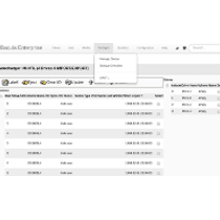
As shown in Figure 1, the additional Bweb configuration described in this document allows for 100% graphical management of tape library operations, such as:
- The tapes labeling (label barcodes)
- Bacula tapes inventory (update slots)
- Others
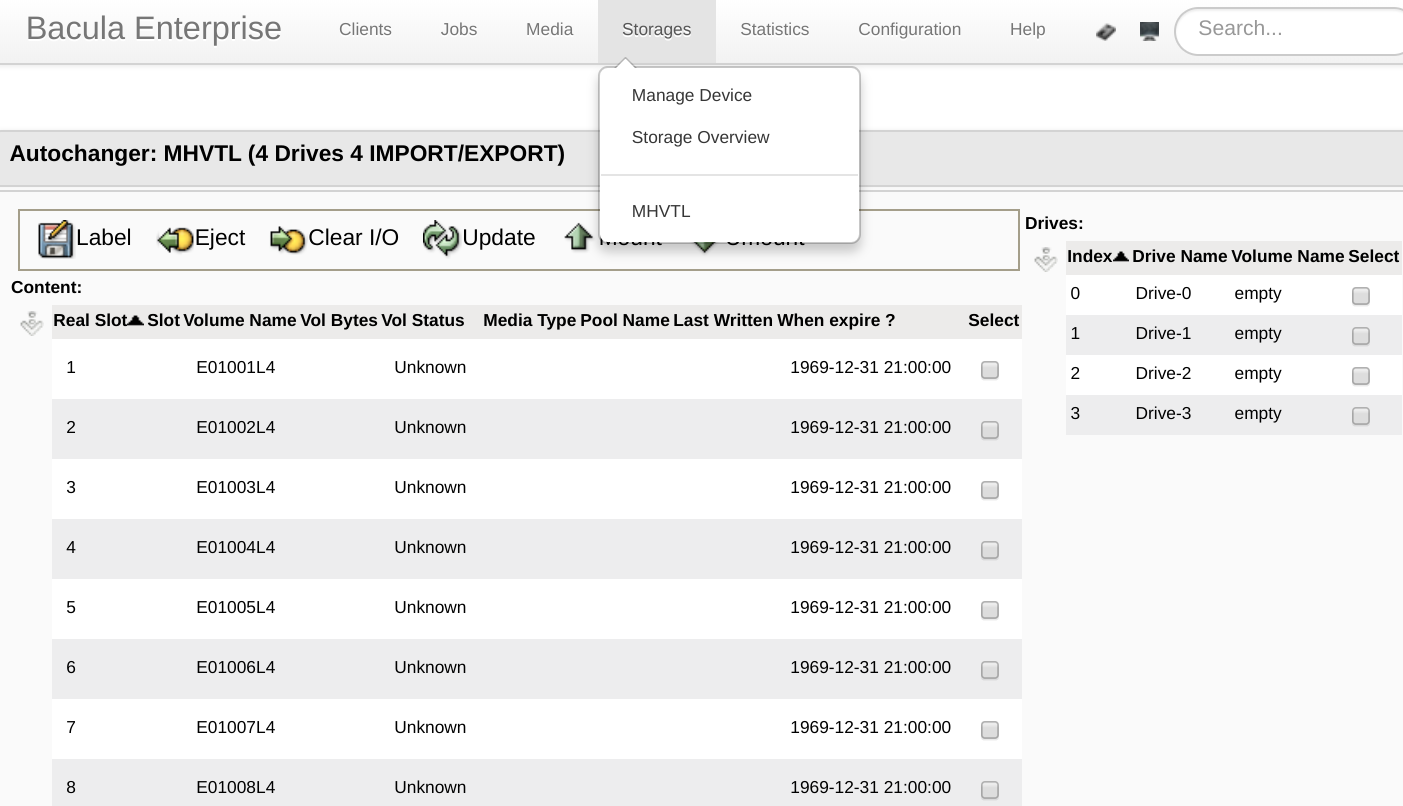
Figure 1. bweb Tape Library Graphical Operation
Bacula Configuration
As shown in Figure 2 and 3, in the Bacula Configuration menu, in addition to the Tape Library Storage Configuration pointing to the Storage Daemon’s “Autochanger” configuration, it is also necessary to tie each one of the Tape Drives, adding a configuration and specifying the name of the Devices and Media Type.
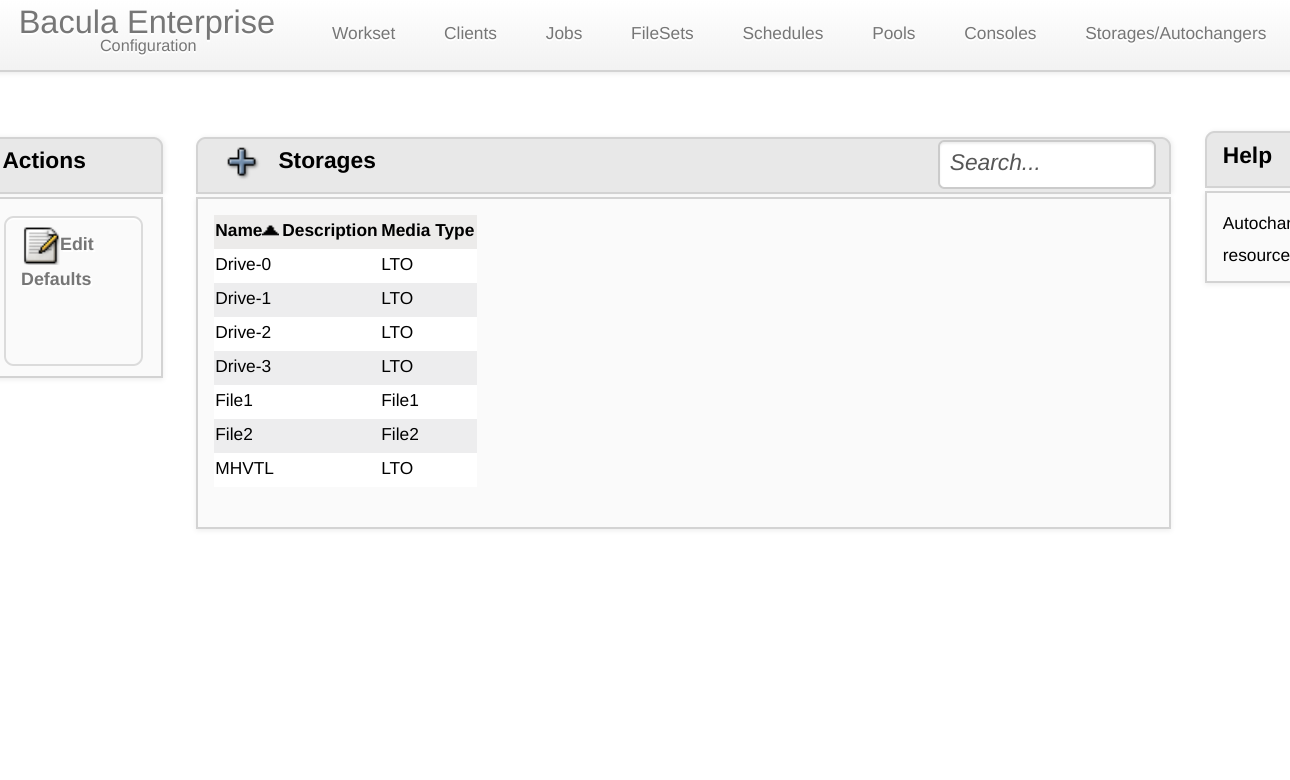
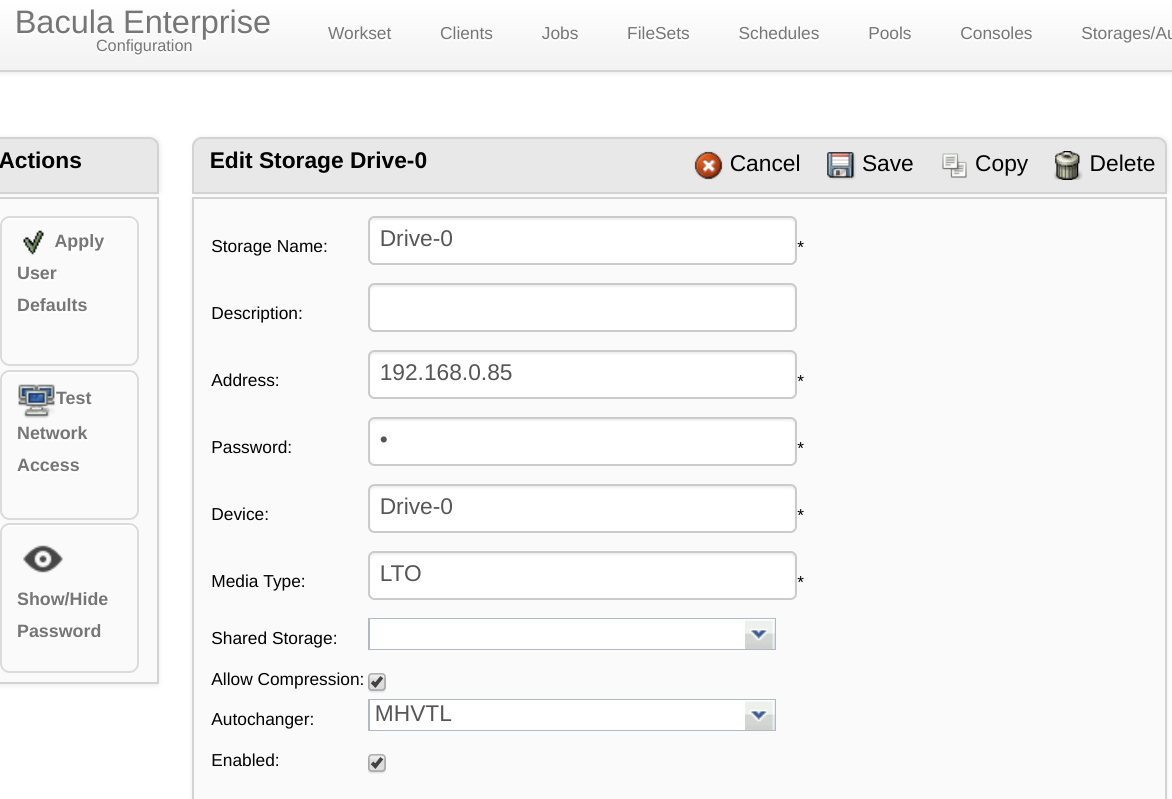
Figures 2 and 3. Tied Drives in the Director’s Storage Configuration
Apply the changes in the Workset menu of the Bacula configuration.
bweb Configuration
According to Figure 4, in the Bweb Setup menu, click the “Add Autochanger” button.
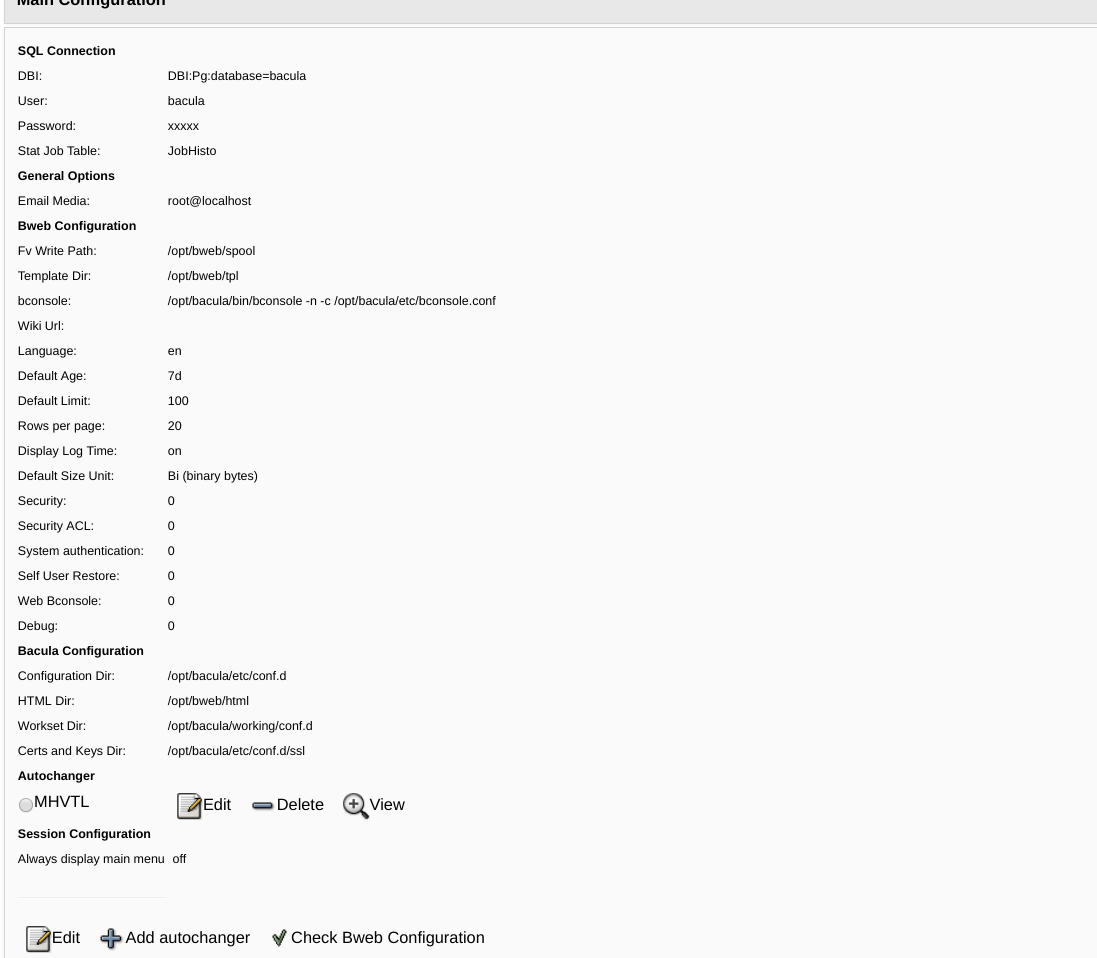
Figure 4. Bweb Configuration Menu, “Add Autochanger” Button at the Screen Bottom
As shown in Figure 5, choose which device is the Tape Library, enter the operating system static path to the tape library picker (e.g. /dev/tape/by-id/scsi-xxxx) in the Device field, select the tape library Drives and inform its associated Drive Indexes (similar to the Storage Daemon configuration).

Figure 5. Add Autochanger Screen in bweb Configuration
Ready! Figure 6 shows that if everything is correctly configured, you can already access the Tape Library operating options through the Bweb home screen Storage menu.
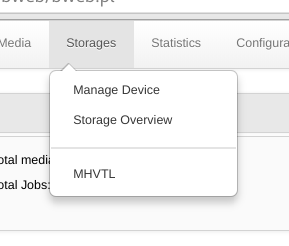
Figure 6. MHVTL Tape Library in the Bweb Administration Home Screen Storage Menu